 Orders ship from the USA, Orders of $25 or more qualify for FREE Shipping in the USA
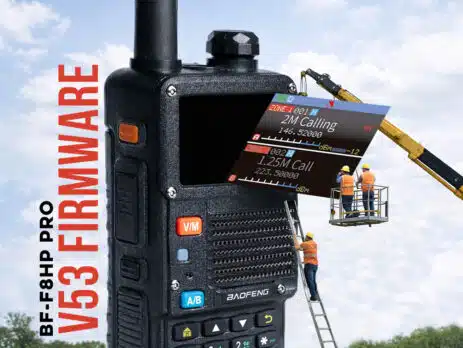
BF-F8HP PRO Firmware V0.53 Is Live: Smarter Scanning, Better Airband, More Control
Friday, January 23, 2026
ARLINGTON, SD – Firmware V0.53 for the BTECH BF-F8HP PRO is available now. and this update isn’t the usual “small fixes you’ll never see.” The very first thing you’ll notice is the screen: the radio now tells you more, faster, and more clearly while you’re actually using it.
The game-changer: a real signal strength readout on-screen (approx dBm)
For the first time on the BF-F8HP PRO, and a first-of-its-kind feature in the Baofeng-style handheld world for a lot of users, you now get a received signal strength indicator displayed in approximate dBm.
What that means in real life:
-
You can compare antennas instantly (stock vs. upgraded vs. mag-mount) and see the difference.
-
You can find the “sweet spot” in a building, basement, hotel, or cabin by walking a few feet and watching the signal improve.
-
You can tell the difference between “I’m barely hearing this” and “this is clean and strong,” without guessing.
-
When you’re monitoring repeaters or simplex traffic, you can quickly learn what’s “local strong” vs “distant weak” and adjust expectations accordingly.
It’s the kind of thing you normally only get on higher-end radios—and once you have it, you won’t want to go back.
Display mode upgrade: Channel Name + Frequency at the same time
If you’ve ever bounced between “Name” and “Frequency” display modes… you’re going to love this. V0.53 adds a new display option that shows Channel Name and Channel Frequency together (selectable by a long-press of 2, depending on watch settings).
You can also set Name+Frequency as the display mode in Program Channel → Ch. Display Mode (applies to all channels).
A small thing that prevents big mistakes: channel delete now shows the real name
When deleting channels from the keypad, the radio now displays the actual channel name, not “CH-xxx.” That’s a quiet change that saves you from nuking the wrong channel.
Scanning got “smart,” not just “fast”
Skip an annoying channel while scanning (temporary drop)
You can now skip continuous traffic (“rag chewing”) or any unwanted channel without leaving scan—press the side key assigned to Scan Edit and that channel is temporarily dropped until the radio is power-cycled.
(Notes: Channel Mode only; and it drops the current scanned channel—so make sure you’re on the one you want to ditch.)
Build a clean scan list as you go (permanent toggle)
When you’re not scanning, that same Scan Edit key becomes a shortcut to enable/disable future scanning for the currently selected channel—permanent across power cycles.
Scanning “no-tone” stops fixed
If you’ve set a channel to require CTCSS/DCS, the scanner will no longer stop on traffic that doesn’t match (no more nuisance stops).
Side keys just leveled up: you get four programmable actions
V0.53 makes side keys far more powerful:
-
SK1 Short, SK1 Long, SK2 Short, SK2 Long are now customizable.
-
The assignable list now includes Monitor, Alarm, and Scan Edit.
Zone Select usability boost
Two fixes/enhancements make Zone Select much less clunky:
-
Pressing 0 now correctly selects Zone 10.
-
If you entered Zone Select using a side key, you can now press that side key again to exit—no menu keys required.
Airband and band-edge fixes that make the radio “behave right”
If you monitor aviation or just want correct band behavior, V0.53 delivers:
-
Airband stepping stays on the expected 00/33/66 sequence (no drifting).
-
The AM indicator now only appears on airband and not elsewhere.
-
Airband range extended to 137 MHz per ICAO; 136–137 is AM and RX-only.
-
1.25m amateur coverage now starts at 219 MHz (Part 97.303(e) secondary allocation).
Cleanups that prevent real-world headaches
-
DTMF dialing now sends only the digits you enter—no surprise ANI ID being transmitted when you hit #.
-
Autolock/Lock behavior is corrected so the radio powers back on in the expected locked state.
-
Dollar signs in channel/zone names display correctly as $.
Two more “power user” wins
Program RX-only channels right from the keypad
You can now disable transmit for a memory channel by setting Tx Frequency = 0 when programming from the radio keypad (previously CPS/CHIRP only).
Even with keypad lock, you can still scan weather/FM
If you’ve assigned a side key for FM Radio or NOAA, you can still scan those bands while locked by long-pressing Scan/#.
The full firmware release notes are included in the V.53 download below
Experience the BF-F8HP PRO Advantage
Thinking of upgrading your gear? Now’s the perfect moment to explore the BF-F8HP PRO’s advanced capabilities—GPS integration, Linked Zone scanning, customizable keys, and improved reliability ensure your radio communications are ready for any challenge.
How to Update Your Firmware
Important Warning for Firmware Updates
This update is only for the BF-F8HP PRO radios. Attempting to apply this firmware update to other models—such as the UV-17 Pro GPS or other non-BTECH models—will result in a bricked or malfunctioning device.
Note: If you accidentally attempt to update a non-compatible device, it may permanently damage or “soft-brick” the radio. For BF-F8HP PRO users, if any issues occur during the update process, performing a firmware flash with the correct V0.44 firmware should resolve them.
To download the firmware update for the BF-F8HP PRO, visit the official BF-F8HP PRO product page and navigate to the Firmware Update, CPS, and Manual tab. Here, you’ll find the BF-F8HP PRO V.53 Firmware Update Bundle with the latest firmware file, CPS programming software, and user manual.

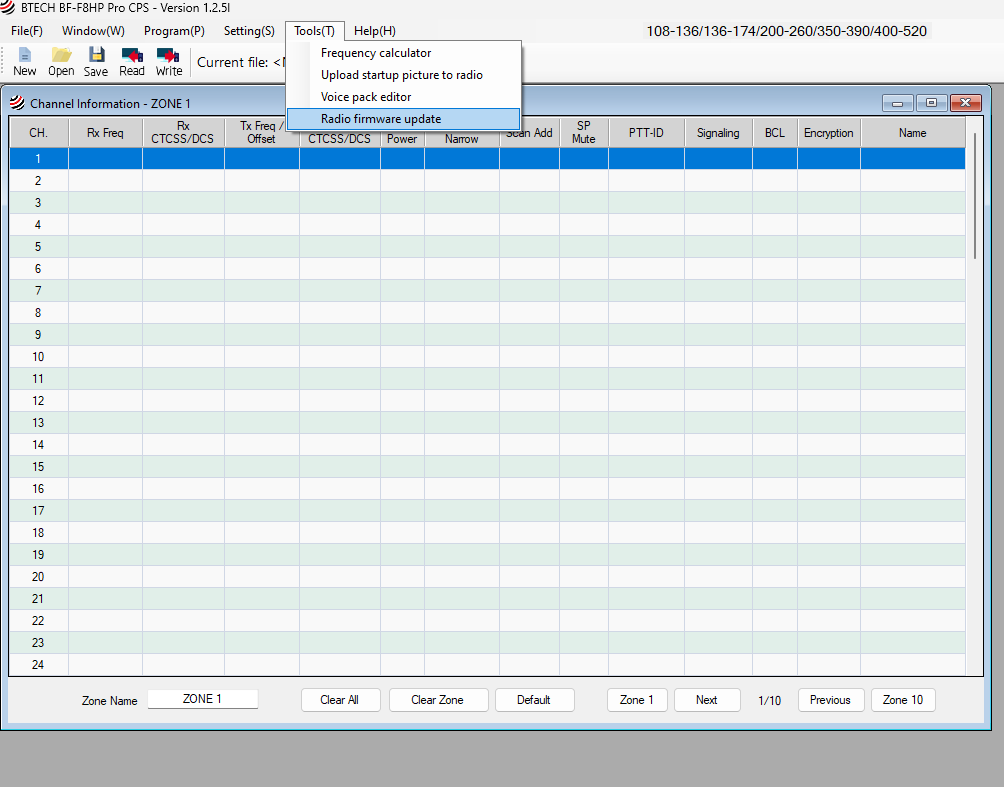
Step 1: Open CPS Software and Access Firmware Update Tool
- Open the BTECH BF-F8HP PRO CPS software on your computer.
- In the top menu bar, select Tools (T).
- From the dropdown menu, choose Radio firmware update.
Step 2: Connect Your Radio and Enter Bootloader Mode
- Use a PC03 programming cable to connect your BF-F8HP PRO radio to your computer.
- Place the radio in bootloader mode:
- Turn off the radio.
- While holding down both side keys, turn the radio back on.
- The radio screen will remain blank, and the green Rx LED will light up, indicating that it is in bootloader mode.
Step 3: Select Firmware File and COM Port
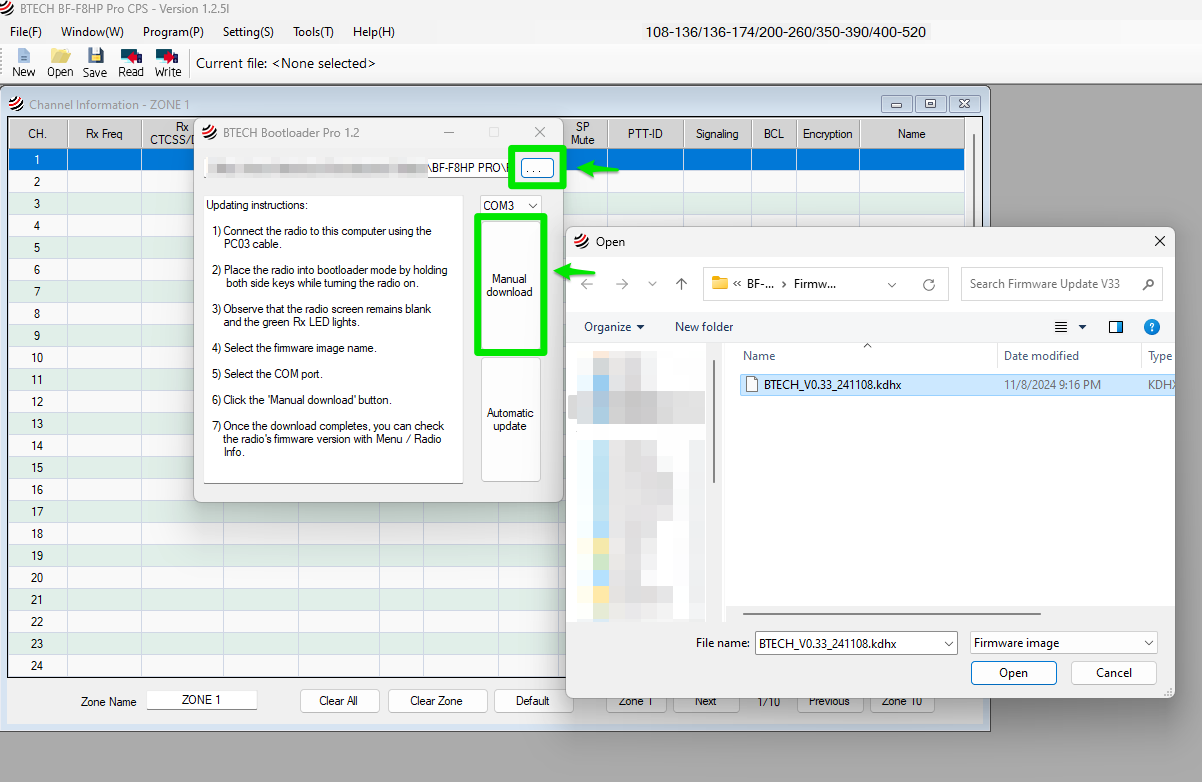
- In the Bootloader window, click the … (browse) button to locate the firmware file.
- A file selection window will appear. Navigate to the folder where you saved the firmware file (e.g., BTECH_V0.44_250409.kdhx), select it, and click Open.
- Select the COM port that corresponds to your connected radio.
Step 4: Start the Firmware Update
- With the correct firmware file and COM port selected, click the Manual download button to start the update process.
- The firmware will be downloaded to the radio. Wait until the process completes.
Step 5: Verify Firmware Update
- Once the update is complete, disconnect the radio from the computer.
- Power on the radio, then check the firmware version:
- Go to Menu > Radio Info to confirm that the firmware has been successfully updated to the new version.
Your BF-F8HP PRO is now updated with the latest firmware.
Your Feedback Shapes the Future
We thrive on your input. Let us know your thoughts on firmware V0.53, suggest improvements, or share your favorite features. Your voice helps us continuously enhance our radios!
Why Choose BTECH?
At BTECH, we’re dedicated to ongoing innovation and robust support for our products. Our firmware updates mean your BF-F8HP PRO stays ahead, packed with the latest radio technology. Thank you for being part of our growing BTECH community. Update now and see the difference Firmware V0.53 makes!
About BTECH
BTECH is a leader in two-way radio innovation for amateurs, professionals, and emergency services. We focus on solid performance, practical features, and a user-friendly experience. For more information, visit www.baofengtech.com or contact us at [email protected]
Thank you for being part of the BTECH community. Stay informed, stay connected, and enjoy everything Firmware V.53 has to offer.











Comments (10)
I just performed the V0.53 FW upgrade and highly recommend it.
This is a Major update and the Upgrade went very smoothly.
The dBm strength reading makes antenna comparisons So much easier.
I also like the new display option. Channel name and freq at the same time.
Is there going to be a version that works on a Apple Mac?
The CPS is Windows-only (and works on ARM Windows versions). This is because of the development toolkit used, which supports Windows version all the way back to XP. (CHIRP supports more platforms, but on Windows requires 64-bit Windows 10 or newer).
A version for MacOS would be a complete rewrite in a different development toolkit, and would need to be approved by Apple.
Most Mac users run the CPS either from Windows in a VM or with a package that emulates Windows. Any issues doing that should be reported so we can investigate and hopefully fix them.
Some Mac users keep a Windows machine around to run the CPS. Even an old XP notebook from a Goodwill or similar store will work – just make sure the computer works and it comes with the AC adapter. Since Windows versions before 11 (with a few exceptions) no longer get security updates from Microsoft, don’t connect an old Windows PC to the Internet – download the CPS, firmware update bundle, etc. on your Mac, copy it to a USB stick, and then use the USB stick in the old PC – nothing in the CPS requires an Internet connection.
I Just did the upgrade.
Ctcss hang seems fixed.
The excessive squelch tail still exists.
On a radio using ctcss for squelch, the tail should be a faint click. This one is so loud it sounds like ripping paper when the repeater drops.
Thanks for the ctcss fix.
Keep me informed on future updates.
Thanks
John
WB4DX
[email protected]
Now with the new dBm reading, we need the ability to tweak the squelch levels for each setting. With that feature, we could adjust squelch to work with noise levels in our area and also allow weaker repeaters to be received!
I can’t wait for an update that allows us to know that the radio is turned on vs. off. A heartbeat from the LED would be great.
For the next update, adding a SideKey choice that just goes directly to the next Zone without showing the list would be great. Something like “Next Zone” (and having it wrap from last to first in a loop) would make the sidekey a one-handed adjustment instead of clicking with the index finger, then needing the thumb to scroll up/down to the zone, then having to click ‘OK’. The current Zone sidekey option is a juggle of fingers to just go up a zone.
Allow users the ability to create crease the brightness of the screen. It is difficult to read the screen in bright sunlight.
It seems that some BF-F8HP PRO devices do not support the CHIRP squelch editing feature. It would be nice for the next update to add it back since some Pro radios do have this feature.
CHIRP cannot write to this area of any newer Baofeng radios as it is in the restricted – no write zone
A BTECH SQL adjustment is releasing this spring that will only work on the BF-F8HP PRO