
 Orders ship from the USA, Orders of $25 or more qualify for FREE Shipping in the USA
Use Satellite Prediction on BTECH DMR radios
The short version
Plan the pass. Let Satellite mode handle Doppler.
In Satellite mode, the DMR-6X2, DMR-6X2 PRO, and DA-7X2 automatically adjust their transmit and receive frequencies for Doppler shift during a pass. The satellite screens also predict rise, peak, and set times from current orbital data and the radio’s location.
Load current orbital data with the matching CPS, confirm your location and time, then select the satellite and operate in Satellite mode. You still need to verify its current status, mode, uplink, downlink, and any required tone; aim the antenna, listen, and follow the applicable operating rules.
Models covered
Pass prediction and automatic Doppler adjustment on these BTECH DMR handhelds
DMR-6X2 and DMR-6X2 PRO gained Satellite Prediction in their 2025 firmware. DA-7X2 includes the feature in its current platform. Use each model’s own CPS and current satellite-data tool.
Compare models and required versions
| Model | Verified procedure | Required version | Important difference |
|---|---|---|---|
| DMR-6X2 | Load orbital data, obtain location, select Satellite mode | Firmware 2.20 or later | Legacy CPS/screens; exact data-source and write wording can differ. |
| DMR-6X2 PRO | Load orbital data, obtain location, select Satellite mode | Firmware 1.20 or later | Use PRO firmware/CPS only. |
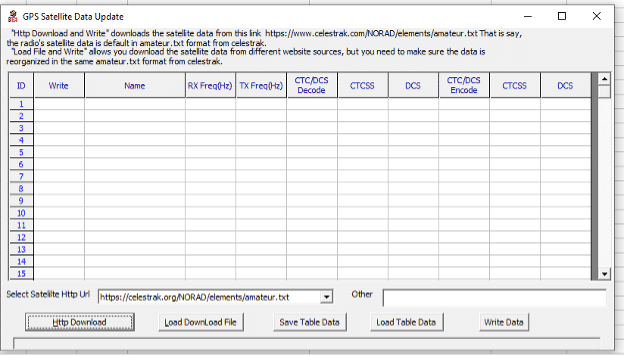
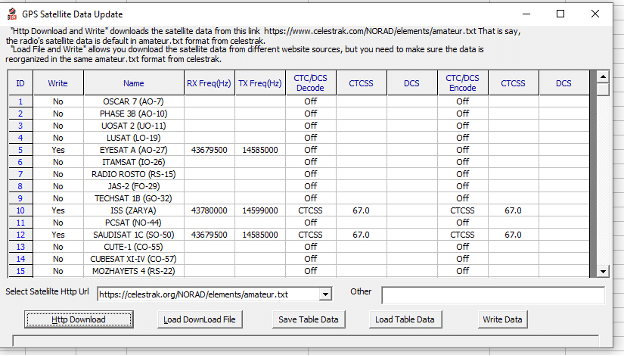
| DA-7X2 | Tool → GPS Satellite Data Update; Menu → Satellite | Current DA firmware/CPS | HTTP Download/Write Data workflow and DA detail screens. |
Load current orbital data
-
Open the matching satellite-data tool
Connect the exact radio to its current CPS. Open the GPS Satellite Data Update, Kepler data, or satellite tool named by that model’s current package.
-
Download or import current data
Use the current supported download function or trusted orbital-data file. Old Keplerian elements make pass times drift; do not reuse a years-old file because the satellite name is still present.
-
Review the list before writing
Confirm the intended satellites are present and the data timestamp is current. Remove or ignore entries whose status/mode is no longer valid.
-
Write data without interrupting the radio
Start the satellite-data write and wait for completion. Keep USB, battery, and computer power stable; then close the tool and power-cycle the radio.
Establish the location used by the prediction
-
Turn on GPS outdoors
Move to a clear view of the sky and wait for a valid position. A stale or missing fix can move the predicted pass by enough to miss it.
-
Use a fixed location only when it is truly fixed
If the model supports fixed APRS/GPS locations, enter verified coordinates for the station and deliberately select that location. Update it whenever the radio moves.
-
Confirm time and time zone
Set date, time, and time zone correctly. A valid orbit and location can still produce confusing clock times when the radio’s time setting is wrong.
Review the pass and listen before transmitting
-
Select the satellite and review the pass
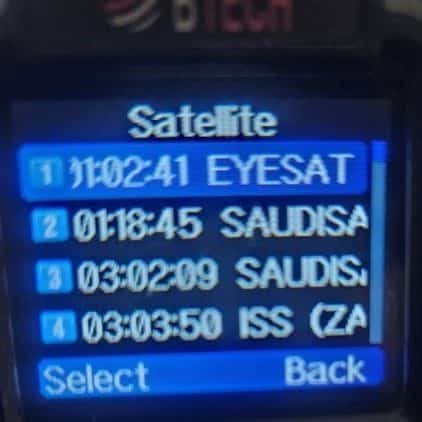
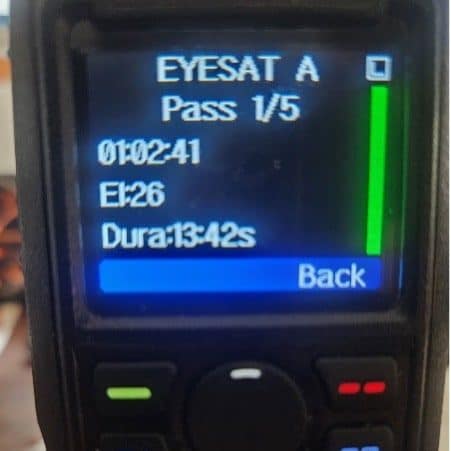
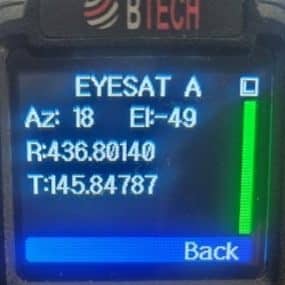
Open Satellite mode and select the satellite. Review its predicted rise time, maximum elevation, set time, and direction. A high pass is usually easier for a handheld setup than a low horizon pass.
-
Listen in Satellite mode
Check that the selected satellite’s downlink and mode match current published data. In Satellite mode, the radio adjusts receive frequency for Doppler as the pass progresses. Keep the antenna aimed appropriately and confirm that you can hear the satellite.
-
Prepare the uplink only when authorized
Verify the selected satellite’s uplink and any required tone, along with your license privileges and the applicable band plan. Satellite mode also adjusts transmit frequency for Doppler; it does not grant permission to transmit. Use the lowest practical power and listen between transmissions.
-
Keep calls short and listen
Satellite windows are brief and shared. Give your callsign/grid or required exchange, listen between calls, and do not monopolize the pass.
Troubleshooting
| What happened | Likely reason | Next check |
|---|---|---|
| No passes appear | Orbital data missing/stale, wrong time, or no valid location | Reload current data, confirm GPS/fixed coordinates, date, time, and time zone. |
| Pass time is wrong | Stale orbital data or incorrect location/time zone | Compare the radio with a current authoritative pass predictor after refreshing all three inputs. |
| Prediction looks right but nothing is heard | Satellite inactive, incorrect satellite data or mode, poor horizon/antenna, or operation outside Satellite mode | Confirm current satellite status, refresh orbital data, verify the selected downlink/mode, and listen in Satellite mode during a higher pass. |
| Downlink is heard but contact fails | Incorrect uplink or tone, operation outside Satellite mode, polarization, antenna, timing, or operator congestion | Keep listening, confirm the selected satellite’s uplink and tone, stay in Satellite mode for automatic Doppler adjustment, and improve antenna placement and timing before adding power. |
Manuals, software, and related guides
Common questions
Does Satellite mode automatically adjust for Doppler?
Yes. While operating in Satellite mode, the DMR-6X2, DMR-6X2 PRO, and DA-7X2 automatically adjust both transmit and receive frequencies for Doppler during the pass. You do not need separate Doppler-stepped channels for this function. You still select and verify the satellite, aim the antenna, operate PTT, listen, and follow licensing and satellite rules.
Can I use the frequencies shown without checking them?
No. Satellite status and modes can change, and a displayed frequency is not transmit authorization. Verify current authoritative data before every operating session.
Why refresh orbital data?
Satellites move and orbital elements age. Stale data makes rise, peak, and set predictions drift.











Comments (8)
If you watch the TX & RCV frequencies, they are constantly changing.
Not sure how you are supposed to communicate through a device with constantly changing frequencies.
Or am I just a Newbie and this is a stupid question?
For 2m, no Doppler accommodation really required. But there is an up to +/-10kHZ deviation on the 440 side – whether TX or RX. See frequency chart at work-sat.com
I’ll be interested when the software automatically sets operating frequencies on the radio.
Fix the radio to automatically go into VFO mode bands a & b and adjust on the fly for doplar effect.
The list of satellites is good. But many lack frequencies. So I turn to Yes, and add the send and receive frequency. Upload and it works but once I update the keps again all my frequencies I entered are gone. Is there a workaround for this?
Correction — September 12, 2026: Ed, our earlier advice to use the satellite feature only for pass data and switch to memory channels or VFO was misleading. Satellite mode automatically adjusts transmit and receive frequencies for Doppler; separate Doppler-stepped channels are not required for that function.
After updating satellite data, check that the selected satellite’s uplink, downlink, mode, and any required tone are correct before operating. Our corrected guide explains the Satellite mode workflow.
You can load TLE data, and the radio calculates everything, but it doesn’t automatically track the TR / RX frequency during a pass?
Does Baofeng realize how close this was to a quantum leap in HT tech ? Ground-breaking.
No other rig can do this internally. I would pay 2X for a radio that does this –
It’s not a big change to the code…. My only question is, “Why don’t you do it now?”
Correction — September 12, 2026: Dave, our earlier reply was incorrect. The DMR-6X2, DMR-6X2 PRO, and DA-7X2 automatically adjust both transmit and receive frequencies for Doppler while operating in Satellite mode. You do not need to create channels during the pass or manually step the VFO for that correction.
We have corrected this guide. You still need current orbital data, an accurate location and time, verified satellite operating parameters, and appropriate antenna pointing and operating practices. We apologize for the misleading information.