
 Orders ship from the USA, Orders of $25 or more qualify for FREE Shipping in the USA
How to Set Up Remote Link
Leave a compatible BTECH radio and an internet-connected Android phone at an authorized radio site. From somewhere else, an authorized user can join the private Network Channel on iOS or Android and hear the radio audio that the gateway successfully forwards.
When Relay Mode is deliberately enabled, authorized Network Channel audio can travel back through the bound radio and onto the authorized local radio channel. The Network Channel may also keep a reviewable history of the audio the gateway successfully forwarded; it is not a guaranteed or complete recording.
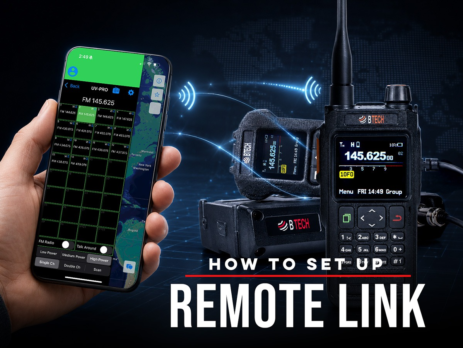
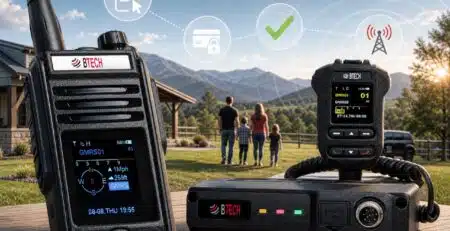
BTECH's guide to Remote Link on compatible app-series radios.
What Remote Link makes possible
A Network Channel is a private voice room in the BTECH app. Remote Link lets that room exchange audio with an authorized local radio-frequency (RF) channel.
At the radio site, an Android phone connects to the internet and pairs with a compatible BTECH radio, such as UV-PRO or UV-50PRO. Together, that phone and radio act as the gateway.
The gateway gives an existing authorized RF channel or repeater a private network path without changing the repeater or adding network hardware to it. The BTECH radio does not modify or directly network-enable the repeater.
One gateway, one private path to local RF
Talk-back needs one extra approval.
The Network Channel owner must grant TX/Admin permission to the account on the Android gateway phone. Without it, Bind can still let people hear received RF audio in the Network Channel, but Relay Mode cannot send audio back over RF.
The Android phone and radio stay where the radio can reach the intended channel or repeater. The user can join the private Network Channel from another internet-connected location.
Choose the site radio
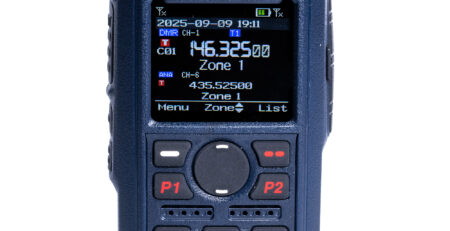
Choose the radio that fits the site
Already own a compatible BTECH app-series radio? Continue to Before you begin. If you are choosing one for the gateway, match it to the place where it will work.
Both choices still require an internet-connected Android phone at the gateway, responsible operator control, and permission for the intended RF operation.
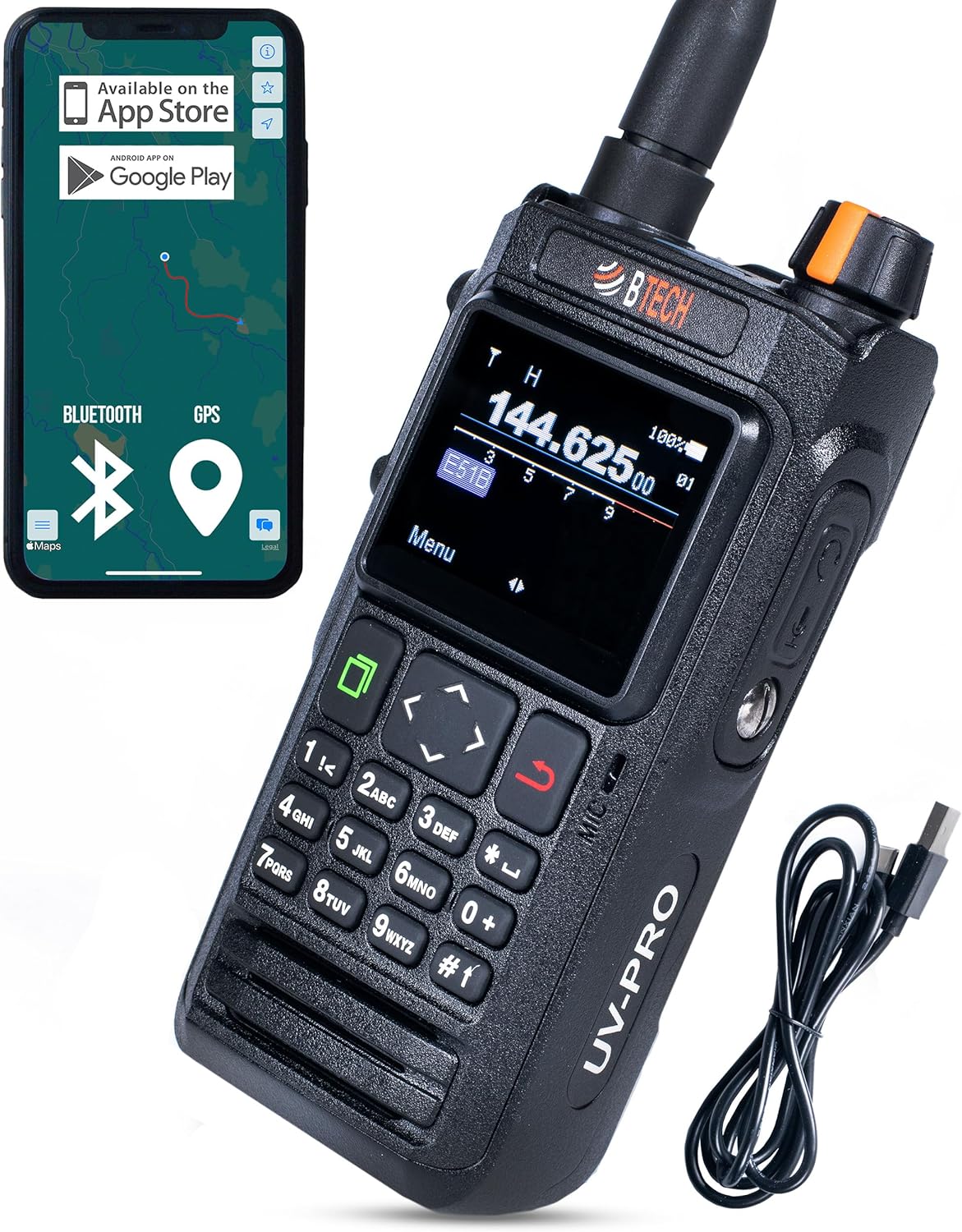
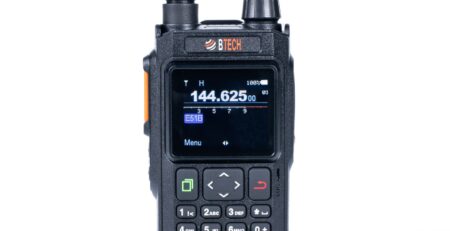
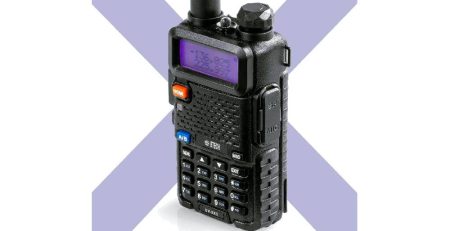
UV-PRO — portable handheld
A compact choice for a portable, field, or temporary gateway.

Already own a compatible radio? Continue to setup.
Imagine what you could build
Stay connected to an authorized home-area repeater
A licensed amateur traveling away from home could join a private Network Channel from iOS or Android. At home, an Android phone and compatible BTECH radio could remain where the radio can reach the authorized amateur repeater.
The traveler hears only the RF audio that the gateway radio receives and successfully sends into the Network Channel. When Relay Mode is deliberately enabled, authorized Network Channel audio can return through the gateway radio over that bound RF channel.
Bring a remote supervisor into a jobsite conversation
An appropriately authorized field or private land mobile radio team could place the Android gateway and radio at its jobsite or base. A remote supervisor or traveler could then join the private Network Channel and communicate with the authorized local radio channel.
Connect internet participants with a field team
A prepared field group could leave the Android phone and compatible radio at the authorized RF location while other participants join the private room over the internet. The gateway still depends on power, internet, Bluetooth, usable RF coverage, permission, and responsible control.
Review the audio the gateway actually forwarded
The Network Channel can retain a reviewable activity history of the RF audio the gateway receives and successfully forwards while the radio, Android phone, app, internet connection, and Bluetooth link remain working.
That history can have gaps. It cannot contain audio the gateway never received or failed to forward. Do not treat it as a complete recording, full-time log, or record of every conversation on a channel or repeater. Control access and retention, and follow every applicable recording, consent, and privacy rule.
Connect authorized RF sites through one private Network Channel
A private BTECH Network Channel can also provide the shared path between authorized RF sites.
Each site needs its own internet-connected Android phone and compatible BTECH radio. Each radio must be able to reach its own authorized local channel.
At each site, binding sends the radio audio received there into the private Network Channel. Relay Mode can send authorized Network Channel audio back through that site’s bound radio. People on iOS or Android can join the same private room alongside the connected RF sites.
Build and test multi-site systems deliberately. Check each audio direction for feedback, looping, interference, and unintended transmissions. Every site remains subject to its own authorization and responsible control.
These examples are starting points, not the only ways to use Remote Link. Once a private Network Channel can exchange audio with an authorized RF channel, you can design a lawful workflow around the people and places your operation actually needs.
Bind is the listening path. Relay Mode is the talk-back path.
The two settings do different jobs:
- Bind network channel: The radio audio received on the selected RF channel goes into the private Network Channel. This opens the RF-to-Network listening path.
- Relay Mode: Authorized audio from the Network Channel can go back through the connected radio over that same bound RF channel. This opens the return path and can make the radio transmit.
People can join and talk in the private Network Channel from iOS or Android. The phone paired with a gateway radio must be Android.
Remote participation still depends on internet at the gateway, usable RF coverage, working power and Bluetooth, responsible control, and authorization for every transmission. Remote Link changes the audio path; it does not expand anyone’s authority to transmit.
For a multi-site system, test each bound channel and each direction separately before relying on it.
Platform boundary
What works on iPhone, iPad, and Android?
This guide covers compatible BTECH app-series radios, including UV-PRO and UV-50PRO, with the current BTECH app. The screenshots use UV-PRO as the interface example.
| What you want to do | iOS | Android |
|---|---|---|
| Create or join a Network Channel | Yes | Yes |
| Talk and listen inside the Network Channel | Yes | Yes |
| Pair with a compatible BTECH radio as the network-to-radio gateway | No | Yes |
| Bind a radio channel to a joined Network Channel | No | Yes |
| Send received RF audio into the Network Channel after binding | No | Yes |
| Send Network Channel audio back over RF with Relay Mode | No | Yes |
An iPhone or iPad can take part in Network Channel voice. It cannot serve as the Bluetooth radio gateway because iOS does not permit the required Bluetooth configuration.
-
1. Create or join the private Network Channel
On iOS or Android, open Network Channels.
To create a room, give it a clear name, choose a suitable server location, add a password when access should be restricted, and save it. Otherwise, join the intended existing room and enter its password.
The Android gateway phone must join the Network Channel before you bind a radio channel. First confirm that ordinary voice works inside the Network Channel. Add the RF connection only after that test passes.
-
2. Pair the Android gateway phone with the radio
At the RF site, pair the BTECH app on the Android phone with the compatible BTECH radio over Bluetooth.
Make sure the app shows the exact radio you intend to use and that the phone is still connected to the intended Network Channel.
Back up the radio’s channel group. Keep the radio powered, keep the phone connected to data, and prevent Android battery-saving settings from putting the app to sleep during the test.
-
3. Bind the radio channel you want to hear
In the Android app, long-press the intended radio channel. Tap Bind network channel, then choose the Network Channel that the gateway phone already joined.
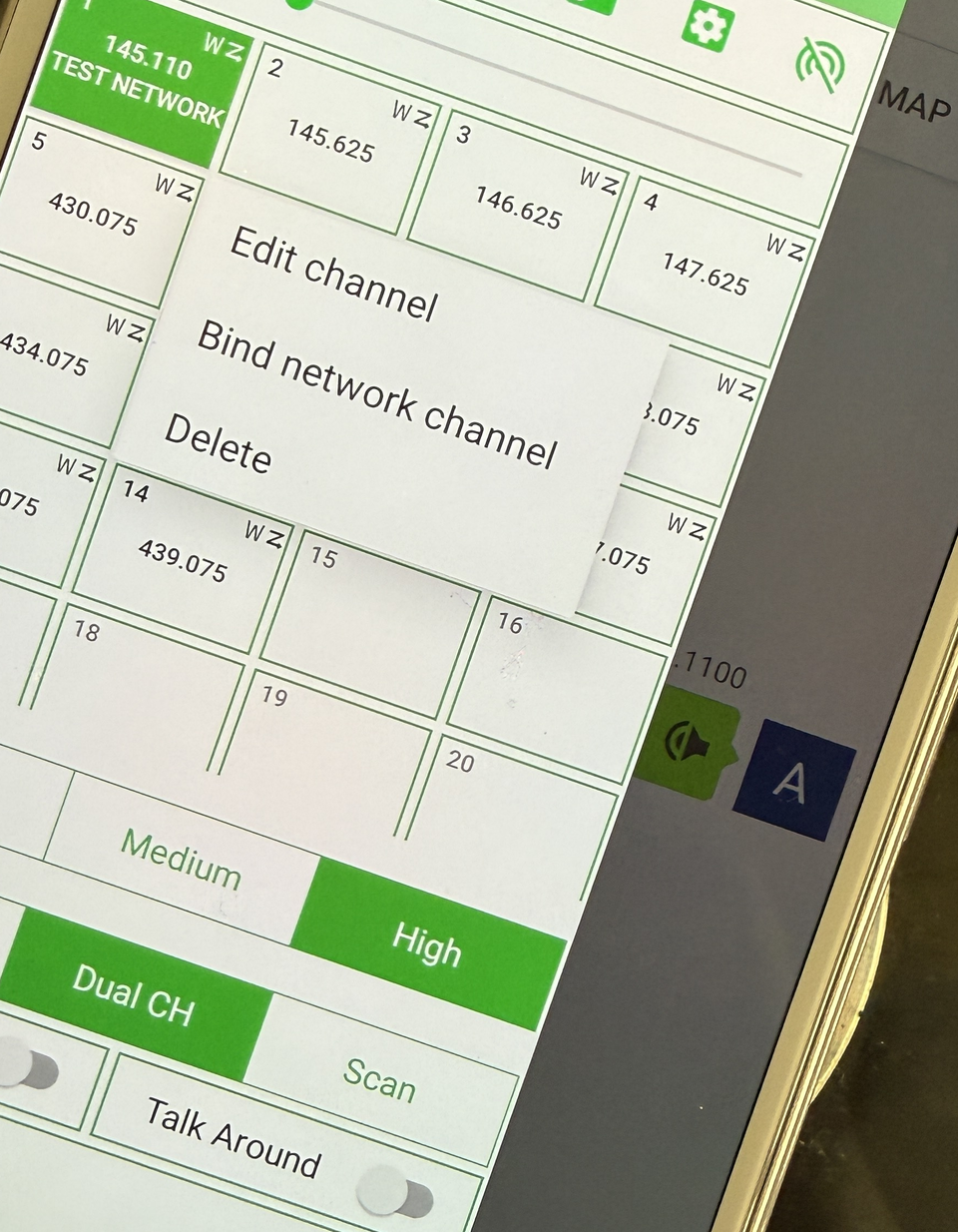
Long-press the intended radio channel and tap Bind network channel. Then choose one of the Network Channels already joined on this Android phone. View larger Before continuing, check the channel name, receive and transmit settings, tones, power, bandwidth, and authorization. Choosing the wrong channel could send received RF audio into the wrong Network Channel.
Binding opens the first direction: audio received by the radio on that RF channel is forwarded into the selected Network Channel.
-
4. Test the listening path first
Use a known, authorized test signal on the bound RF channel. Confirm that people in the selected Network Channel can hear it.
If they cannot, stop here. Do not enable Relay Mode yet.
Check the Android phone’s internet connection, Bluetooth pairing, joined Network Channel, bound radio channel, room mute setting, app permissions, and radio audio level.
-
5. Enable Relay Mode for authorized talk-back
Long-press the bound radio channel again and enable Relay mode.
If the app shows Administrative permissions required or Requires admin permission, stop here. Ask the Network Channel creator or owner to grant TX/Admin permission to the account logged into the Android gateway phone. Then confirm the correct account and try Relay Mode again.
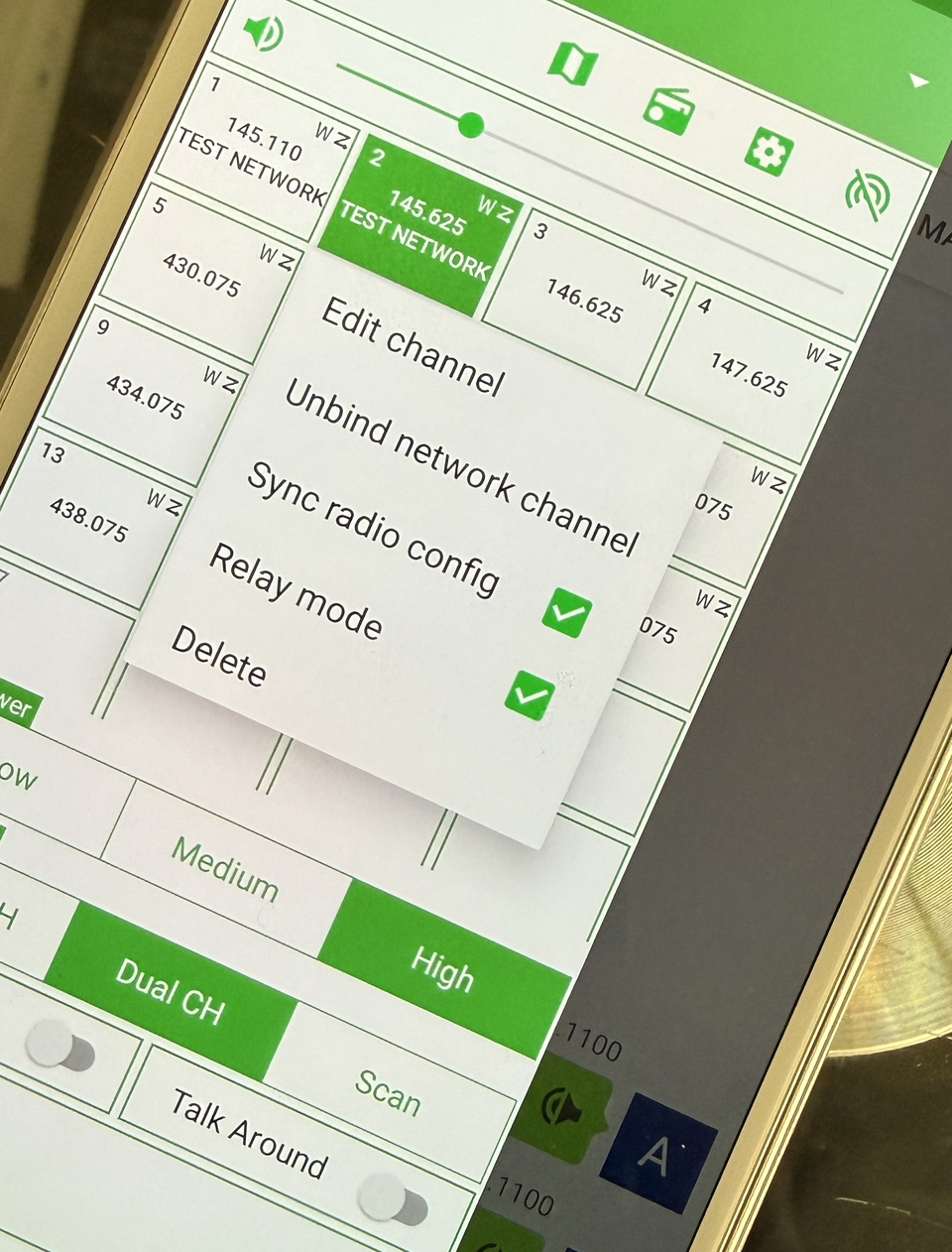
After binding, long-press the channel again. Relay mode is enabled here; Sync radio config is a separate, optional remote-management permission. View larger Relay Mode opens the second direction. Network Channel audio can now transmit through the bound radio over the RF channel. Binding alone does not open this return path.
-
6. Test both directions carefully
Before sending a controlled return-audio test, confirm:
- the private Network Channel and who can hear it;
- the bound RF channel;
- the radio settings and audio level;
- the required account permission and authorization for the RF operation; and
- the person who can disable Relay Mode or unbind the channel immediately.
Run a short, controlled test. Stop if audio loops, interference appears, the wrong channel is used, or the connection becomes unstable.
-
7. Optional: change supported radio settings remotely
Do not confuse Sync radio config with Network Channel TX/Admin permission. TX/Admin permission lets the Android gateway account send Network Channel audio back over RF through Relay Mode. Sync Radio Config controls whether the Primary account may change the bound radio’s frequency and channel settings remotely.
The bound-channel menu also includes a Sync radio config checkbox. This optional setting decides whether the Primary account may remotely synchronize or change the bound radio’s frequency and channel settings.
- Checked: The Primary account may synchronize or change those settings remotely.
- Unchecked: Remote synchronization will not overwrite or update that channel’s settings.
Binding and Relay Mode do not turn on Sync Radio Config or make settings change automatically. You do not need this permission to send received RF audio into the Network Channel or to enable Relay Mode for the authorized return-audio path.
Primary and Secondary account roles matter only to this optional remote-management workflow. The basic Create or Join → Bind → Relay setup does not require them.
-
8. Stop, switch, or unbind Remote Link
When the gateway is no longer needed—or before moving Relay Mode to a different bound channel:
- Long-press the bound channel and disable Relay mode.
- If you are stopping or changing the binding, choose Unbind network channel.
- Before enabling Relay Mode on another bound channel, confirm that the current Relay Mode link is off. Keep only one active relay on this gateway/radio.
- Remove administrative access that is no longer needed.
- Confirm that the radio has returned to the intended channel and operating state.
- If power, internet, Bluetooth, or the app failed during use, treat the gateway as unverified. Repeat every check before enabling it again.
Troubleshooting
People can talk in the Network Channel, but the phone cannot connect it to the radio
The gateway phone must be Android. iOS and Android can both use Network Channel voice, but an iPhone or iPad cannot provide the required Bluetooth network-to-radio gateway.
The radio receives audio, but nobody hears it in the Network Channel
Confirm that the Android gateway phone has internet service, remains paired with the correct BTECH radio, and is joined to the intended Network Channel. Check the bound radio channel, room mute setting, app permissions, and radio audio level.
Network Channel audio does not go back over the radio
Binding opens only the RF-to-Network listening path. Confirm that Relay mode is enabled and that the Network Channel owner has granted TX/Admin permission to the account logged into the Android gateway phone. If the app shows Administrative permissions required or Requires admin permission, the return path does not have the permission it needs. Ask the Network Channel creator or owner to grant TX/Admin rights, confirm the correct gateway account, and try again. Until then, Bind may continue to provide a receive-only RF-to-Network path.
Audio follows the wrong path, overlaps, or causes repeated RF transmission
Assume more than one relay may be active. Immediately turn off Relay Mode or unbind the current channel. Check every bound Network Channel on that gateway/radio and leave Relay Mode on only for the intended one. Test again only after the audio path is clear. Stop if the overlap, interference, or transmit loop returns.
The Android phone disconnects when its screen turns off
Allow the BTECH app to keep running in the background. Review Android battery optimization and confirm stable power, mobile data or Wi-Fi, and Bluetooth. Do not rely on an unstable session.
A Sync Radio Config change does not reach the radio
Treat this as a separate remote-management problem. Confirm that the correct Primary account, radio, and bound channel are selected and that Sync radio config is checked for that channel. When it is unchecked, remote synchronization should not overwrite or update that channel’s settings. Do not change an otherwise working Bind/Relay audio path while troubleshooting remote settings.
The connection returns after power or internet fails
Treat the gateway as unverified. Recheck the account, Network Channel, radio, Bluetooth pairing, bound channel, and Relay Mode state before continuing.
Quick answers
Can iOS and Android users talk in the same Network Channel?
Yes. Both platforms can create or join a Network Channel and use voice inside it.
Can an iPhone or iPad serve as the radio gateway?
No. The gateway must be an Android phone paired with the compatible BTECH radio because iOS does not permit the required Bluetooth configuration.
Does binding create the complete two-way audio path?
No. Binding sends received RF audio into the Network Channel. For the return path, the Android gateway account needs TX/Admin permission from the Network Channel owner, and Relay Mode must be deliberately enabled. Without both, Remote Link remains receive-only.
Does the gateway need internet?
Yes. Every Network Channel participant needs active data service. The Android gateway phone must also maintain internet and Bluetooth connections with the paired radio.
Is Relay Mode the same as changing radio settings remotely?
No. Network Channel TX/Admin permission allows the Android gateway account to send Network Channel audio back over RF through Relay Mode. Sync radio config is a different permission: when checked, it allows the Primary account to synchronize or modify that bound radio’s frequency and channel settings remotely; when unchecked, remote synchronization will not overwrite or update that channel’s settings. Sync Radio Config is not required for binding or Relay Mode.
Can I enable Relay Mode for more than one Network Channel?
Not on the same gateway/radio. Keep Relay Mode on for only one Network Channel at a time. To switch, turn it off on the current bound channel or unbind that channel before enabling another. This rule applies to each gateway/radio; it does not prevent separate gateways at separate authorized RF sites.
Does Remote Link change who may transmit?
No. It changes the audio path. It does not change equipment authorization, operator privileges, channel rules, or station requirements.
BTECH resources
Choose your Remote Link radio
Ready to build your Remote Link setup?
Already own a compatible radio? Use Before you begin to gather the Android phone, internet connection, permissions, backup, and test channel.
If you are choosing a radio for the gateway, pick the form that fits the authorized RF site: UV-PRO for a portable handheld setup or UV-50PRO for a vehicle, base, or fixed installation. Then return to this guide for the setup.




Leave a Reply