
 Orders ship from the USA, Orders of $25 or more qualify for FREE Shipping in the USA
Share channel plans across BTECH PRO radios
Build the channel plan once. Send it in seconds.
Email or text a CSV to iOS or Android, paste a share code on Android, or copy directly between nearby radios in the same family. The recipient reviews the plan before anything changes on the radio.
A channel group is a saved set of radio channels. Once one person builds and checks it, everyone else can receive the plan without typing every channel again.
Channel sharing
Choose the easiest way to share
CSV file — iOS or Android
Choose CSV when a group is getting ready for a trip or event, when teammates use both iOS and Android, or when you want a reusable backup. One person builds and checks the plan, then emails or texts the file. Each teammate saves it, imports it, reviews it, and decides when to sync. Keep the CSV for the next outing or a replacement device.
Share code — Android
Choose a share code when everyone receiving the plan uses Android and you want the quickest no-file handoff. Copy the complete code, send it by text, email, or another messaging app, then let the recipient paste, review, and save it.
Send/Receive Channels — nearby radios in the same family
Choose direct copy when two compatible radios are together. No phone or internet connection is needed. It works within one verified family: GMRS-PRO with GMRS-50PRO, or UV-PRO with UV-50PRO, in either direction. It does not copy directly between the GMRS and UV families.
If the plan changes, update the saved group and send a new CSV or Android share code. The recipient still chooses when to review, save, and sync it. This is not an automatic fleet update. A CSV is a file for iOS or Android; a share code is pasted into the Android app; Send/Receive Channels copies directly between nearby same-family radios. None of these routes automatically writes a plan to the receiving radio.
Method 1: send a CSV file to iOS or Android
A CSV is a small file that carries the whole channel group. You can email it, text it, or save it in the phone’s files. The recipient imports the file into the matching BTECH app.
-
1. Export the group
On iOS or Android, open Settings → Channel & Groups. Open the saved group and tap Export. The app creates the CSV file.
-
2. Send the file
Use the phone’s share sheet to email or text the CSV, or save it to the phone’s files. Send the attached file itself. Do not paste the rows of the file into the message.
-
3. Import it on the receiving phone
- On iPhone or iPad: Save the CSV to Files. Then open Settings → Channel & Groups → Import From File and choose it.
- On Android: Save the CSV to the device, then import it through the current matching BTECH app.
-
4. Review, then save
Check the group name, number of channels, frequencies, tones, offsets, bandwidth, power, scan setting, and service restrictions. Save the reviewed group.
Importing the CSV does not write anything to the radio. Back up the destination radio before you choose to sync.
You do not need to edit the CSV for ordinary sharing. The reference below is for readers who want to inspect or change individual fields.
What do the CSV file terms mean?
These definitions explain the retained BTECH UV-PRO CSV example. If a fresh export from the exact radio model uses a different heading or allowed value, follow that fresh export.
| Field | What it controls | Format and watch-outs |
|---|---|---|
title |
The channel name shown in the app and radio | Keep it within the model’s name limit. If the name contains a comma, the CSV editor must quote it correctly. |
tx_freq |
The transmit frequency | Enter integer hertz. For example, 147015000 means 147.015 MHz. This field never gives permission to transmit. |
rx_freq |
The receive frequency | Enter integer hertz with no decimal. Check it separately from the transmit frequency. |
tx_sub_audio |
The CTCSS tone or DCS code sent while transmitting | 0 means none. CTCSS uses frequency × 100, so 151.4 Hz becomes 15140. For DCS, copy the exact format and polarity from a valid fresh export. |
rx_sub_audio |
The CTCSS or DCS value required to open received audio | It uses the same format as tx_sub_audio. A wrong value can make a busy frequency sound silent. |
tx_power |
The transmit power level | H, M, or L when the radio supports it. Match the radio, channel, and service rules. |
bandwidth |
The analog channel bandwidth | 12500 is 12.5 kHz narrow; 25000 is 25 kHz wide. Match the radio system and applicable service rules. |
scan |
Whether normal scanning includes the channel | 0 = off; 1 = on. |
talk_around |
Whether the channel uses direct operation instead of its programmed repeater pair | 0 = off; 1 = on. Leave it off unless the intended workflow specifically uses talk-around. |
pre_de_emph_bypass |
Whether the radio bypasses normal pre-emphasis and de-emphasis processing | 0 = normal processing; 1 = bypass. Keep the exported value unless an exact technical workflow calls for a change. |
sign |
The auxiliary signaling switch in this template | 0 = off; 1 = on. Behavior can vary by firmware, so leave it as exported unless the exact-model instructions explain its use. |
tx_dis |
Whether transmission is disabled on this channel | 0 = not disabled by this field; 1 = transmit disabled. Use receive-only operation where required. |
mute |
The channel mute switch in this template | 0 = off; 1 = on. Keep the exported value unless the workflow calls for muting. |
rx_modulation |
The receive modulation | 0 = FM; 1 = AM. On UV-PRO, AM airband reception is receive-only. |
tx_modulation |
The transmit modulation | 0 = FM; 1 = AM only where the radio, firmware, frequency, service, and authorization support it. A selectable value is not permission. |
See the iOS path
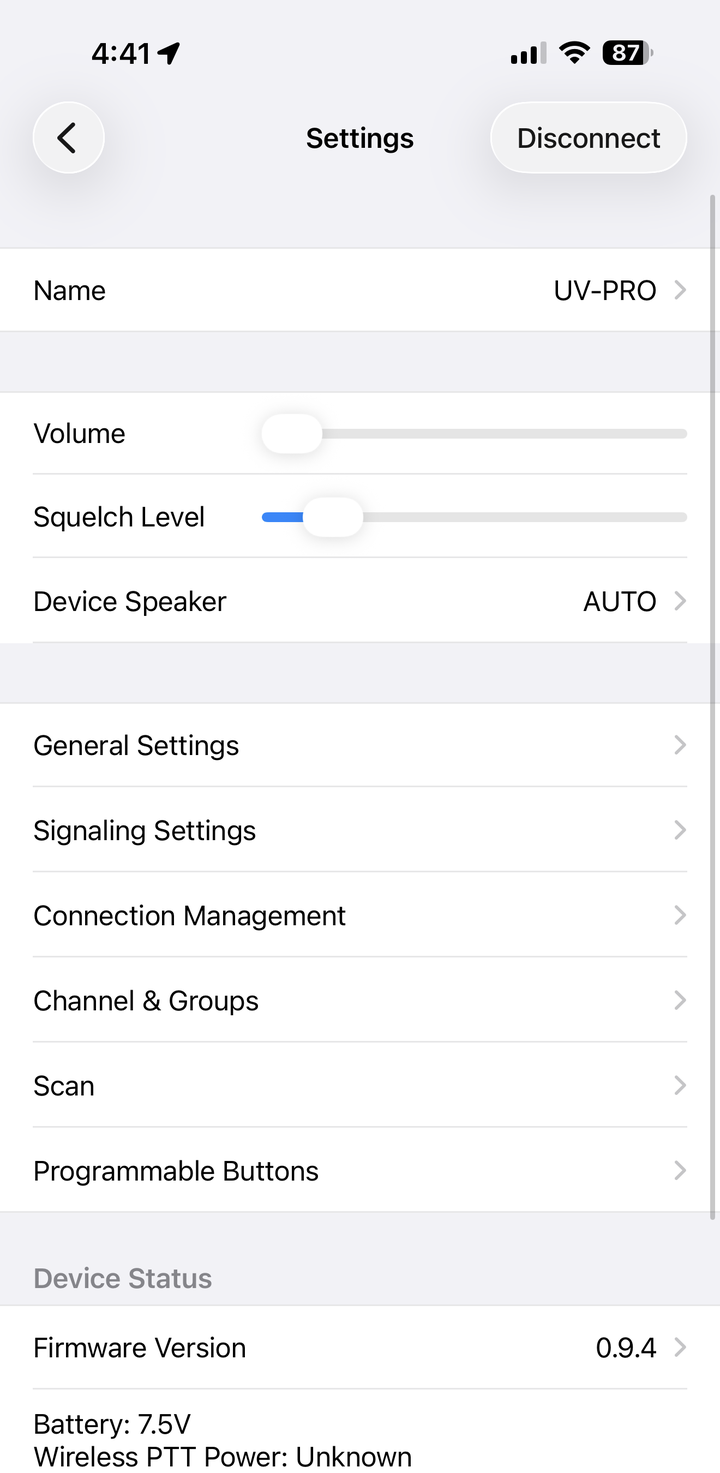
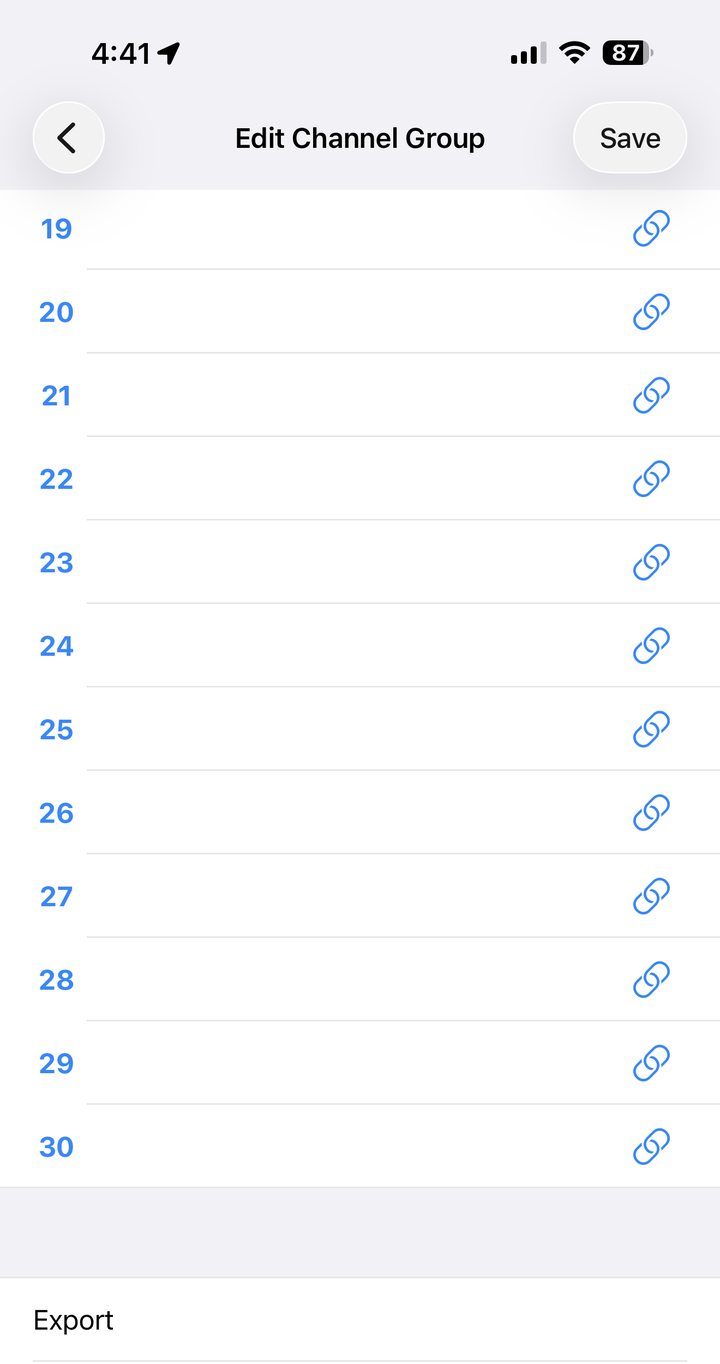
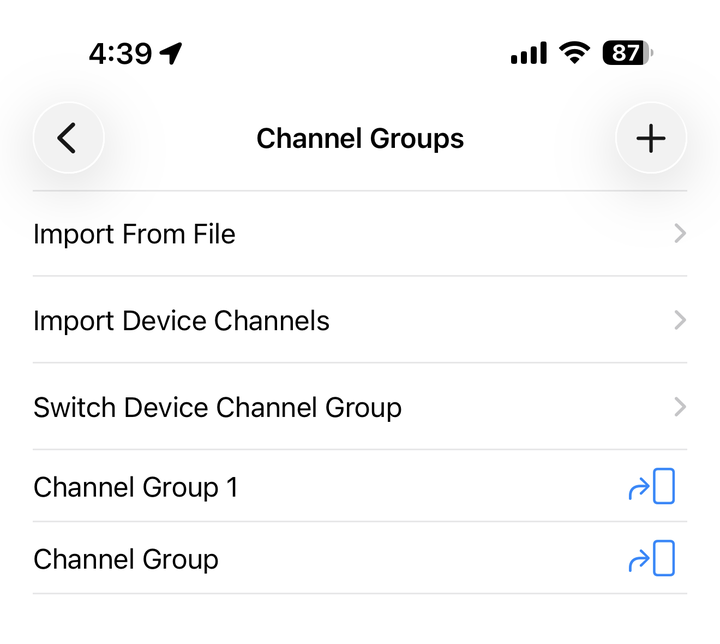
These screens show where to export and import the CSV. Use the iOS share sheet to send the file by email or text, or save it to Files.
Method 2: send a share code to another Android user
A share code is the complete channel group turned into a long block of text. The sender copies it. The recipient pastes it into the Android BTECH app. No file is needed.
-
1. Open the saved group
In the current Android BTECH app, open Settings → Channel & Groups, then open the group you want to send.
-
2. Create and send the code
Tap Share. Use Direct Share when it is available. Otherwise, tap Copy and paste the complete code into a text, email, or another messaging app.
Send the entire code without editing it.
See Share and Export on Android
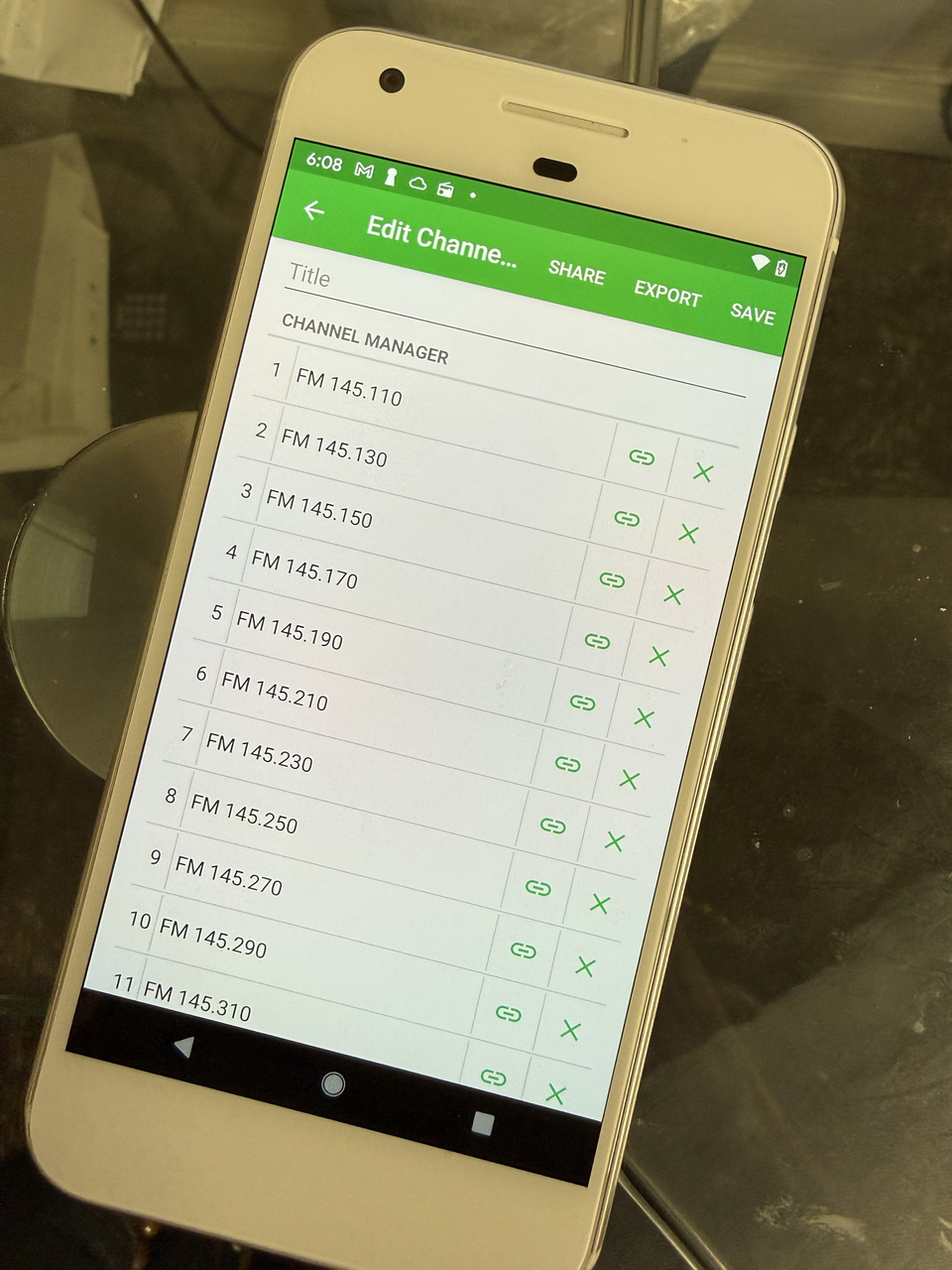
On Android, open a saved group. Use Share for a copyable group code or Export for a CSV file. View larger 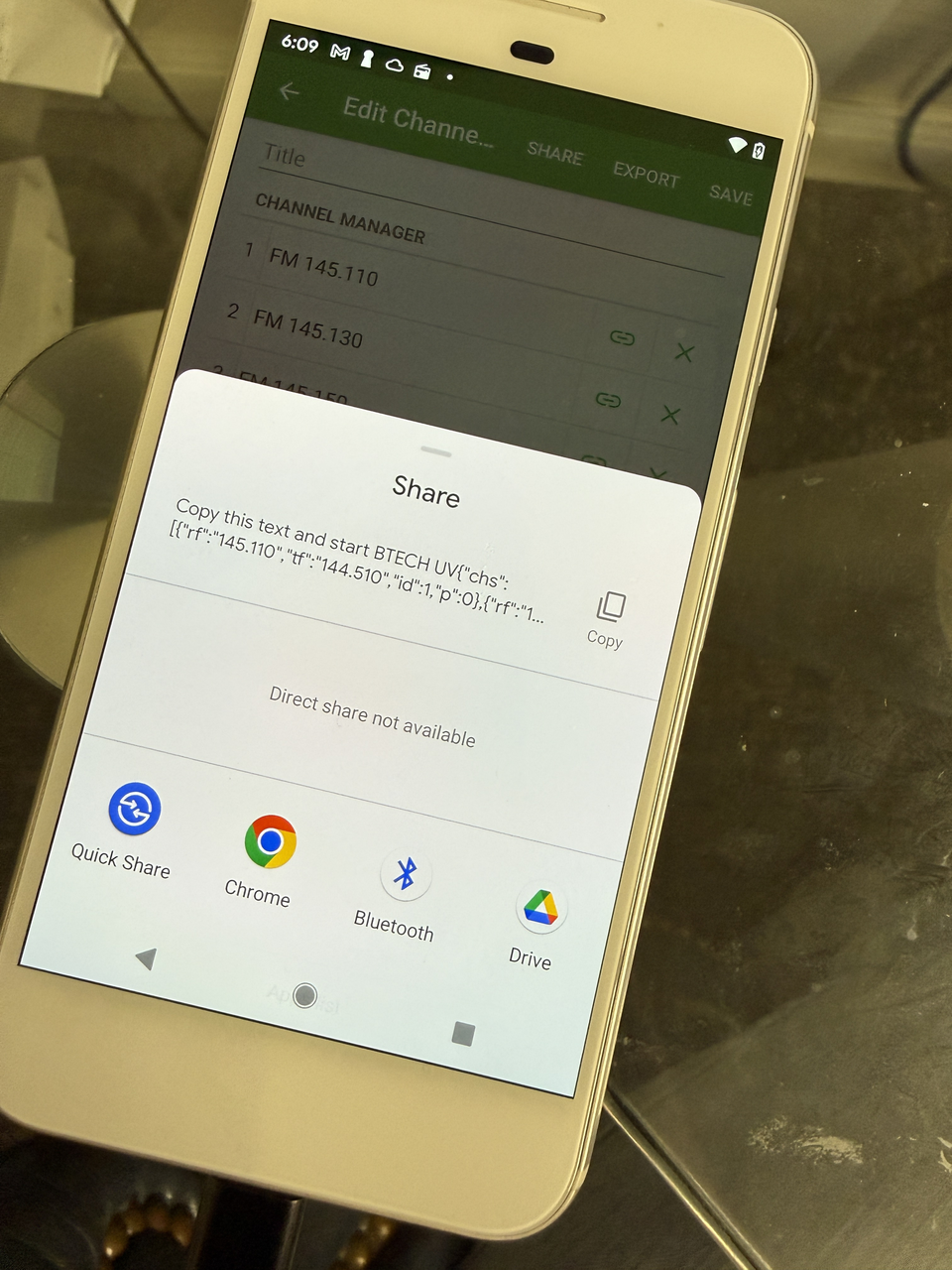
Share opens a copyable group code. If Direct Share is unavailable, tap Copy, then paste the complete code into a text, email, or another messaging app. View larger -
3. Paste and save it
The recipient copies the complete code and pastes it into the current matching Android BTECH app. They review the imported group, give it a clear name, and save it.
Pasting and saving the code do not write the group to the radio.
-
4. Review before syncing
Open a few channels from the beginning, middle, and end of the group. Correct anything that does not fit the destination model, radio service, license, or location. Then, and only then, choose whether to write the reviewed group to the radio.
Method 3: copy between two nearby radios
This method is useful when both radios are in front of you. It works within one verified family; it does not copy directly between the GMRS and UV families.
-
1. Confirm the radio family
Use GMRS-PRO with GMRS-50PRO, or UV-PRO with UV-50PRO, in either direction. Same-model pairs also work.
-
2. Put the receiving radio in Receive Channels
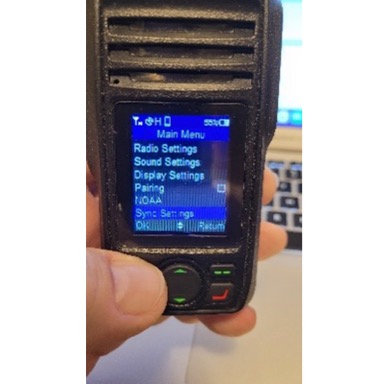
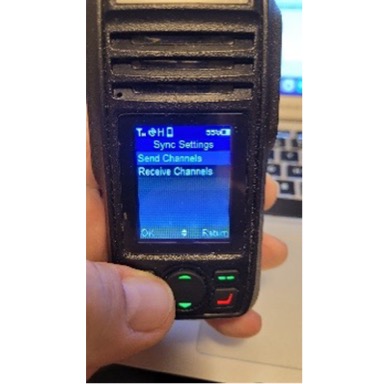
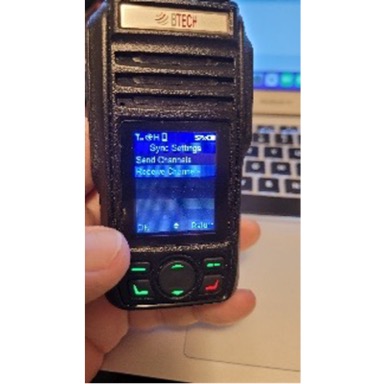
On the radio that should receive the plan, open the channel-copy or Sync Settings screen. Choose Receive Channels, or the equivalent singular label.
-
3. Start Send Channels on the source radio
On the radio that already has the plan, choose Send Channels. On GMRS-50PRO or UV-50PRO, use the control microphone.
-
4. Let both radios finish
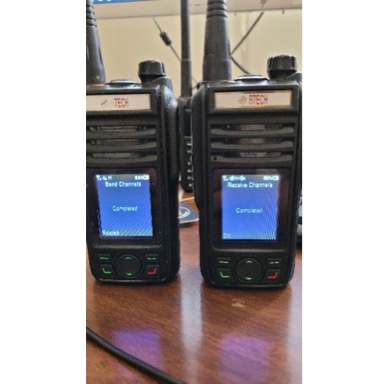
Do not press PTT, change screens, or remove power. Wait until both radios report completion. Then open the copied group and inspect it before transmitting.
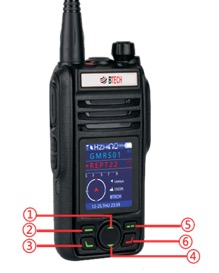
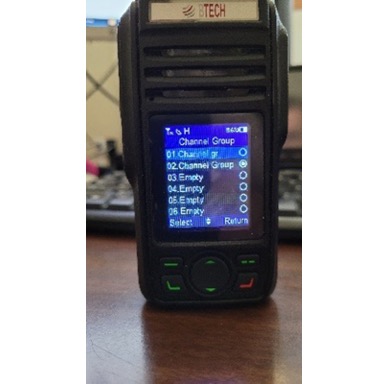
Original radio-side screens
Preserve these six BTECH images in this order. Firmware wording may vary slightly, but the receiving radio still starts first and both radios must report completion.
Want to take the channel plan farther?
You can prepare the same authorized channel plan for a local team and for a UV-PRO used with an Android Remote Link gateway. Sharing the channel plan and running Remote Link are separate jobs: this guide covers the plan; the Remote Link guide covers the network-to-radio connection.
Check the plan before anyone transmits
A successful transfer proves only that the settings moved. It does not prove that every setting is supported by the destination radio or lawful for its service, license, and location.
Review every copied channel before transmitting.
Troubleshooting
| What happened | What to check |
|---|---|
| The CSV will not import | Save the attached CSV to the phone’s files first. Open it through the current matching BTECH app’s CSV import control. Make sure the file was not renamed, reformatted, or cut off. |
| The share code will not import | Use the current matching Android BTECH app. Copy the complete code again, and confirm that you are pasting a share code rather than choosing a CSV file. |
| The imported group will not sync | Reconnect the destination radio and correct any field that model does not support. |
| The receiving radio never starts | Confirm that both radios are in the same GMRS or UV family. Start Receive Channels first and move the radios closer together. |
| The direct transfer stops partway | Restore stable power, restart the receiving radio, and try again without pressing PTT or changing screens. |
| The new channels do not work | Check the frequency, tones, offset, bandwidth, power, scan setting, and service restrictions one at a time. |
Quick answers
Can I send a channel-group file between iPhone and Android?
Yes. Export the group as a CSV, email or text the file, then save and import it through the current matching BTECH app on iOS or Android. Review and save the group before any optional radio sync.
Can I paste a UV-PRO share code on an iPhone or iPad?
No. The pasteable share-code workflow is Android-only unless BTECH separately confirms otherwise. On iOS, send and import the group as a CSV file.
Does receiving a CSV or share code change the radio?
No. The recipient first imports the CSV or pastes the code, reviews the group, and saves it in the app. Syncing it to a radio is a separate, optional action.
Can I copy directly between a handheld and a 50PRO mobile radio?
Yes, within the same verified family: GMRS-PRO with GMRS-50PRO, or UV-PRO with UV-50PRO.
Can I copy directly from a GMRS radio to a UV radio?
No. This direct-copy workflow does not support transfers between the GMRS and UV families. Use the correct app workflow and review every destination setting.
Does sending a share code change the sender’s radio?
No. It creates a portable copy of the saved app group. The recipient decides whether to sync it.
Compatible radios
Choose a compatible BTECH PRO radio
Already own one of these models? Keep using this guide. If you are choosing a radio for the workflow, start with where it will be used: a handheld travels easily; the matching 50PRO is made for a vehicle, base, or fixed installation.
For direct Send/Receive Channels, stay within one family: GMRS-PRO with GMRS-50PRO, or UV-PRO with UV-50PRO. Do not copy directly between GMRS and UV families.
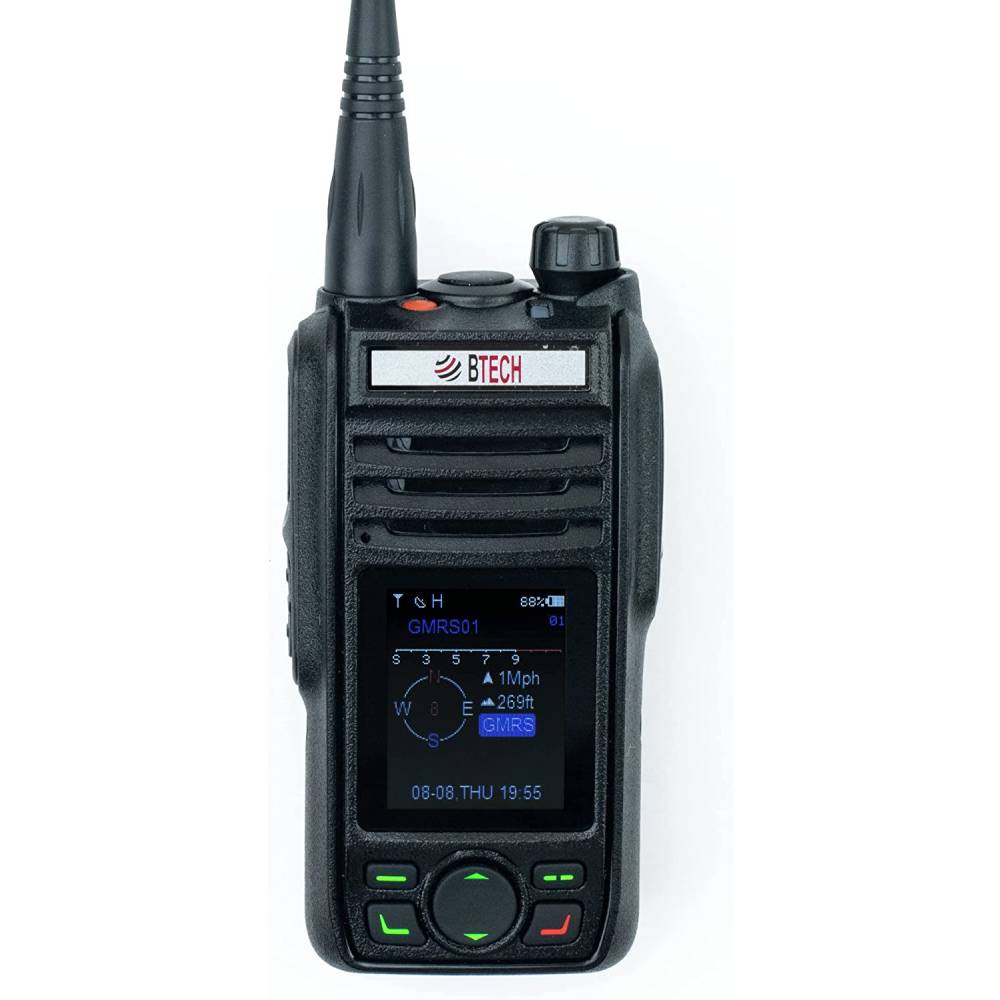
GMRS family
GMRS-PRO ↔ GMRS-50PRO — direct copy in either direction. Same-model pairs also work.

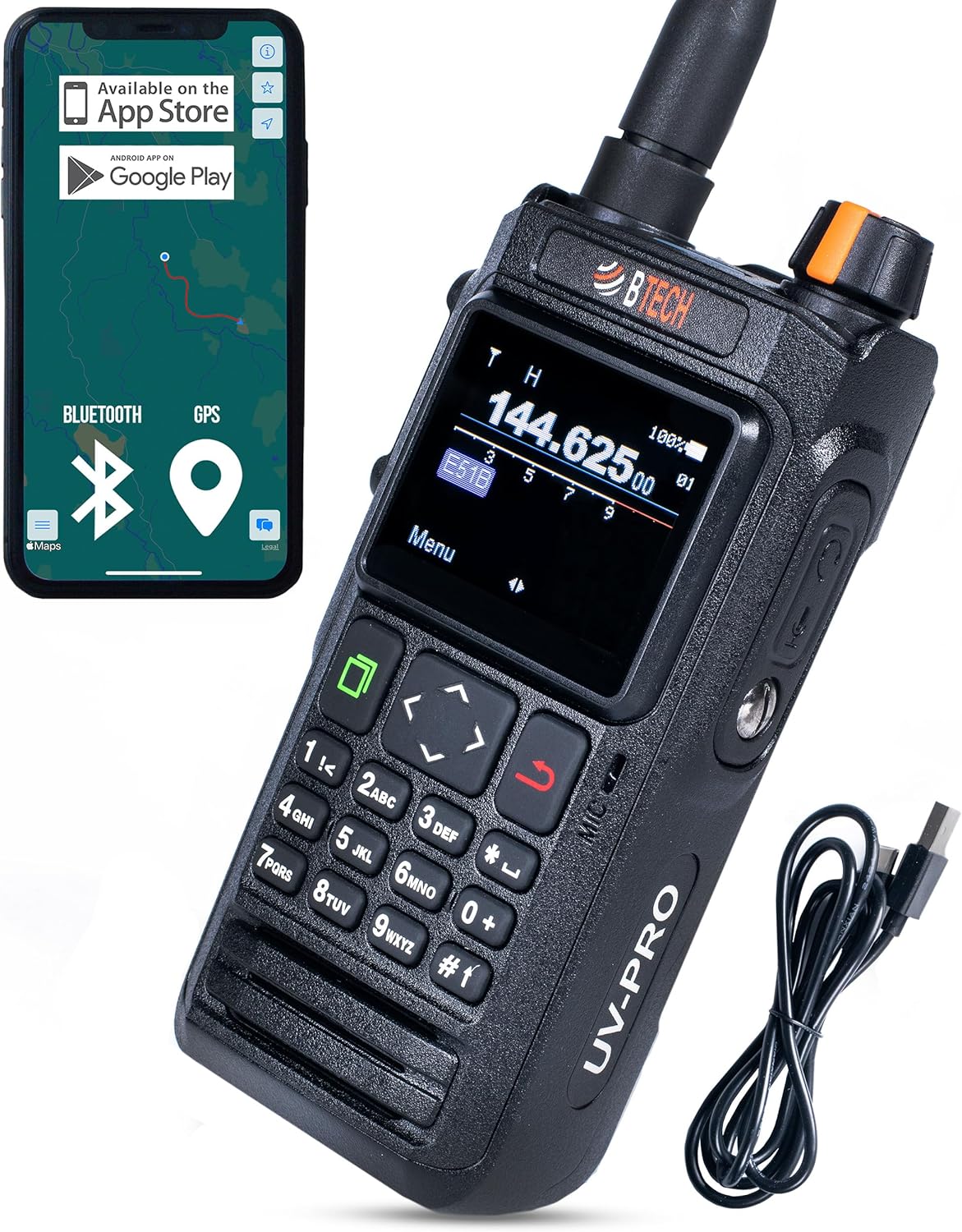
UV family
UV-PRO ↔ UV-50PRO — direct copy in either direction. Same-model pairs also work.

Manuals and resources
- BTECH UV Programmer & GMRS Programmer App Manual
- GMRS-PRO manuals and guides
- GMRS-50PRO manuals and guides
- UV-PRO manuals and guides
- UV-50PRO manuals and guides
- GMRS-PRO programming software
- GMRS-50PRO programming software
- UV-PRO programming software
- UV-50PRO programming software
- Move a larger channel plan with CSV




Leave a Reply