
 Orders ship from the USA, Orders of $25 or more qualify for FREE Shipping in the USA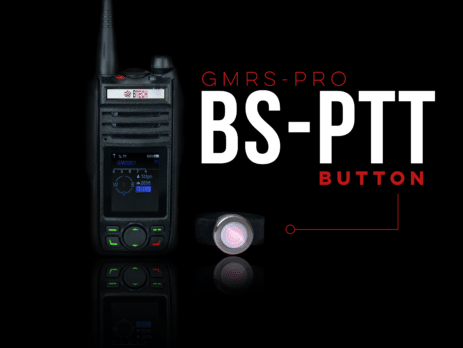
Set up Bluetooth audio and PTT on BTECH PRO radios
Build the Bluetooth connection in three checks
First pair a compatible audio device and confirm receive audio. Next add the supported PTT or VOX path. Last, make one brief authorized transmission and confirm which microphone the radio is using.
Bluetooth setup
Treat audio, microphone, and PTT as three separate links
A Bluetooth connection can carry audio without routing the right microphone or controlling PTT. Test receive audio, microphone routing, and transmit control one at a time.
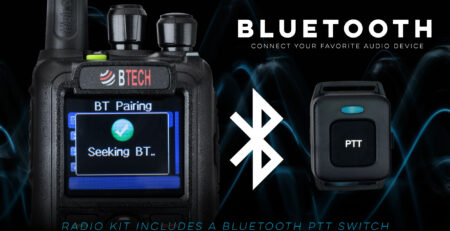
Watch the original BS-PTT walkthrough
The original BTECH video shows the BS-PTT pairing sequence. Use the written checks below to confirm the radio settings and diagnose problems the video does not cover.
Compatibility note: The legacy video thumbnail says “any Bluetooth headset.” Current compatibility varies. Bluetooth audio alone does not add PTT; use a supported BTECH PTT path or a verified compatible HFP device.
Video not loading? Watch the original BS-PTT tutorial on YouTube.
Pair and test each part
-
Clear old pairings only if they are failing
If the devices will not reconnect, remove the stale pairing on both sides and restart them. Do not erase a working pairing just to begin this guide.
-
Open Bluetooth Settings on the radio
Open Main Menu → General Settings → Bluetooth Settings, then start the radio’s pairing mode. Labels can vary slightly by model or firmware.
-
Pair the audio device
Place the compatible HFP device in pairing mode, select the correct device name on the radio, and wait for the connected state.
-
Listen before you transmit
Monitor a known active channel at a safe volume. Confirm the sound is reaching the device you expect and that another nearby Bluetooth host is not taking it.
-
Add the supported transmit-control path
Pair the supported BTECH PTT accessory or configure the documented VOX behavior. Bluetooth receive audio by itself does not create a PTT function.
-
Confirm the microphone
Make one brief authorized test and ask another station which microphone it hears. This catches the common case where PTT works but the radio is listening to the wrong microphone.
Troubleshooting Bluetooth audio and PTT
| What works | What that tells you | Try next |
|---|---|---|
| The device never appears | It is not discoverable or is connected elsewhere | Disconnect other hosts, restart pairing mode, and move it close to the radio. |
| Receive audio works, but PTT does not | The audio profile is connected; transmit control is not | Pair a supported BTECH PTT accessory or configure the documented VOX option. |
| PTT keys the radio, but audio is wrong | The wrong microphone is active | Test one device at a time and check the radio’s Bluetooth microphone/audio selection. |
| The connection drops | Range, obstruction, battery, or a competing host is interrupting it | Recharge, move closer, and disconnect every competing Bluetooth host. |
| Vehicle audio is inconsistent | The vehicle’s HFP or microphone path is not compatible | Use a verified compatible headset or BTECH accessory instead of assuming universal vehicle support. |





Comments (3)
sure wish you guys made large screens n bottone..some of us users are hard to see
Downloaded firmware now all indicators on front of not are flashing. How do I fix?
If the screen does not light up after upgrading, please turn off first, then press and hold the OK button (the button in the upper left corner) and turn it on, wait for a few seconds and the screen will light up